
Logging Settings in HashCore Toolkit
The Logs section in HashCore Toolkit is designed to manage the recording of operational information about the programme’s behaviour. Using these settings, you can select the location for storing log files, specify the level of detail to be recorded to a file or the device’s memory, set buffer limits and generate a diagnostic report for the current session. Logs help to record information about events that occur during the launch and use of HashCore Toolkit. The settings in this section are particularly important when diagnosing errors, as the saved report can be forwarded to our technical support specialists for analysis of the issue. You can download the latest version of HashCore Toolkit from the relevant page on our website.
How to open the log settings in HashCore Toolkit
To access the logging settings, open HashCore Toolkit and click the Settings button at the top of the interface. In the settings window, select the Logs tab.
The following settings are available in this section:
- ► The directory where log files are stored
- ► Log level in the file
- ► In-memory log level
- ► Memory buffer limit
- ► Saving a diagnostic report for the current session
After changing the settings, click the Save button. If you close the window or click Cancel, the changes you have made will not be applied.
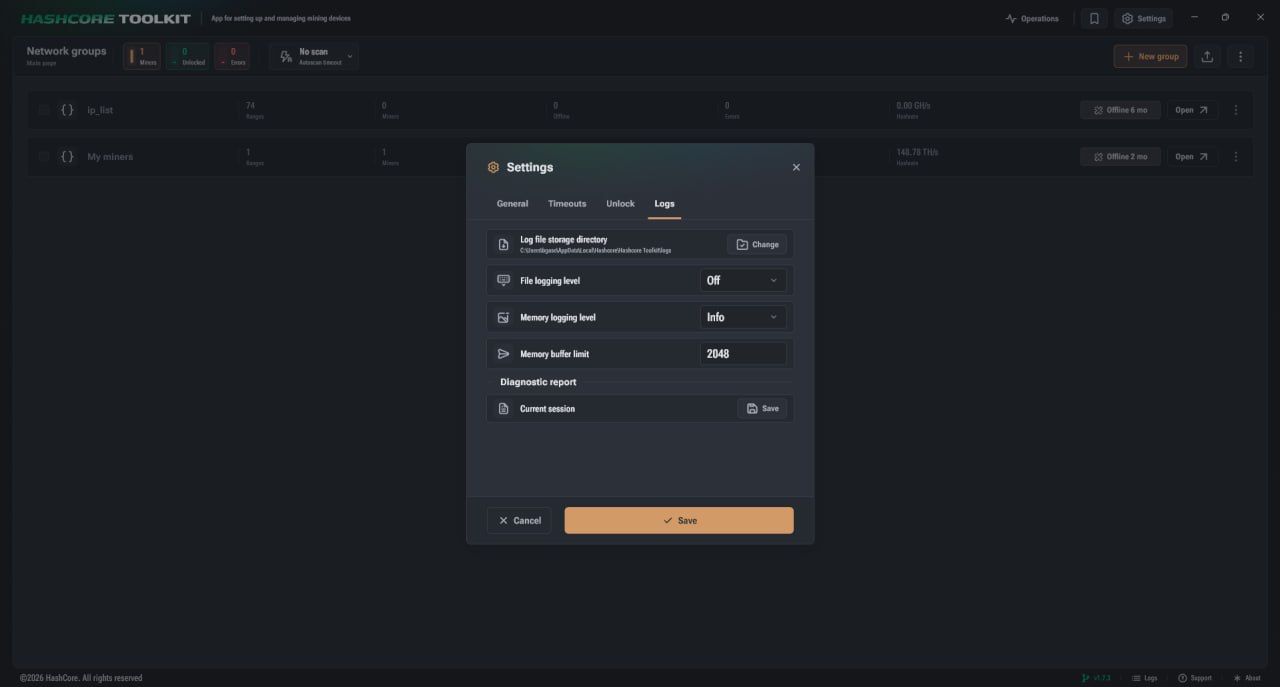
Log file storage directory
The Log file storage directory field shows the folder to which HashCore Toolkit writes log files. By default, the programme uses the system directory designated for storing cached and service data for the application. The current path to the folder is displayed directly below the setting’s name. This allows you to quickly identify where the generated logs are located on your computer. To select a different folder, click the Change button. You will then be prompted to specify the required directory in the file system. The new location will take effect once the settings have been saved. Changing the directory can be useful when you need to store logs in a separate folder or find them quickly for subsequent transfer and analysis.
File logging level
The ‘File logging level’ setting determines the minimum severity level of data that HashCore Toolkit will write to the log file. A separate log file is created each time the programme is launched.
The following options are available in the list:
- All
- Trace
- Debug
- Info
- Warning
- Error
- Fatal
- Off
The selected value affects the composition of the information that is written to the file.
Memory logging level
The Memory logging level setting determines the minimum severity level of data that the application will store in the device’s memory. The same levels are available for this setting: All, Trace, Debug, Info, Warning, Error, Fatal and Off. Unlike logging to a file, this data is stored in RAM whilst the application is running. The log size is controlled by a separate setting called Memory Buffer Limit. In the example shown in the screenshot, the value ‘Information’ is set. Consequently, HashCore Toolkit will store data in memory corresponding to the selected logging level.
Memory Buffer Limit
The Memory Buffer Limit field sets the maximum length of the log stored in memory. When the log reaches the set limit, older entries are automatically deleted. This ensures that the amount of data in memory does not increase indefinitely, whilst new events continue to be added to the log. The default value is 2048. This value determines the permissible buffer size for storing current entries. When changing this setting, bear in mind that a lower value reduces the amount of information stored. A higher value allows more records from the current session to be retained in the log.
Displaying logs in the main programme window
The current HashCore Toolkit logs can be viewed at the bottom of the main programme window. This area displays entries relating to the application launch, system information checks, update checks and other events from the current session.
To filter entries, buttons for the following levels are available: All, Trace, Debug, Info, Warning, Error and Fatal.
Using these filters, you can display only entries from the required category on the screen. For example, to view error messages, select ‘Error’, and to display all entries, use ‘All’. This viewing method simplifies the search for the required messages in the log and allows you to focus on a specific type of event.
How to save a HashCore Toolkit diagnostic report
In the Diagnostic Report section, the Current Session option is available. It allows you to save the information collected by the programme during the current run of HashCore Toolkit.
To generate a diagnostic report:
- Open Settings in HashCore Toolkit.
- Go to the Logs tab.
- Find the Diagnostic Report section.
- Next to the Current Session option, click Save.
- Specify where to save the report on your computer.
You can send the resulting file to our technical support team along with a description of the problem. The report contains data from the current session, so it is advisable to save it whenever an error occurs or the programme malfunctions.
Why are logging settings needed?
The logging settings in HashCore Toolkit allow you to control what operational data the programme will store and where it will be located. You can manage file logging and in-memory logging separately. The file log is created when the programme starts and is saved in the selected directory. The in-memory log operates within the limits of the set buffer. Once the limit is reached, old entries are deleted to make room for new ones. A separate diagnostic report allows you to save data from the current session for further analysis. This simplifies the transmission of error information and helps provide HashCore specialists with the necessary materials to verify the application’s operation.
FAQ
How do I enable log file saving in HashCore Toolkit?
Open Settings, go to the Logs tab and select the required value in the File Log Level field. Then click Save.
Where are HashCore Toolkit logs stored?
The path to the folder is specified in the Log File Storage Directory field. If necessary, you can change the directory using the Change button.
How do I save a HashCore Toolkit diagnostic report?
In the Logs tab, locate the Diagnostic Report section and click Save next to the Current Session entry.
Why do old log entries disappear from memory?
This happens once the set memory buffer limit is reached. HashCore Toolkit automatically deletes the oldest entries to free up space for new ones.