
Quick actions in VNISH firmware
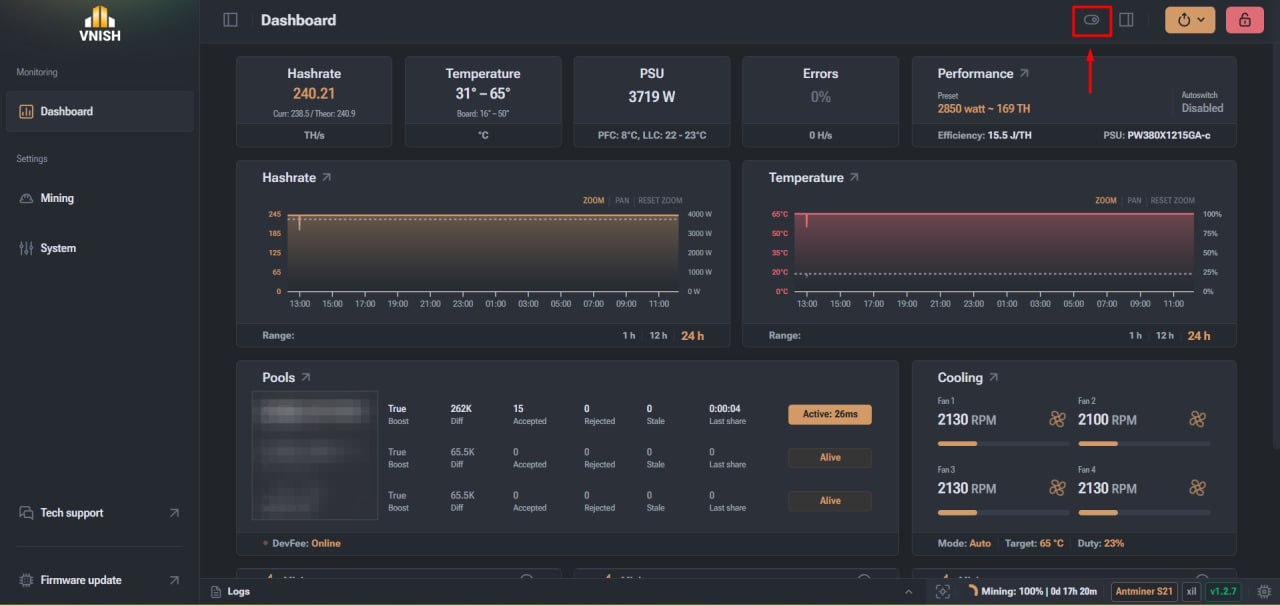
The quick actions panel in VNISH firmware is designed for quick control of the miner's web interface settings. It allows you to change key interface settings without going to separate configuration sections. This approach significantly speeds up work with the device, especially in cases where the operator needs to quickly change the language, theme, or optimise the interface display. The quick settings feature is part of the ASIC miner control system in the VNISH firmware. It is implemented as a compact access panel that opens directly from the top of the web interface. This allows the user to instantly change the display settings without interrupting the main work with the miner. To open the quick action panel, click on the settings icon at the top of the interface. This will bring up a menu with basic interface control settings and tools for identifying the miner.
Interface settings in VNISH
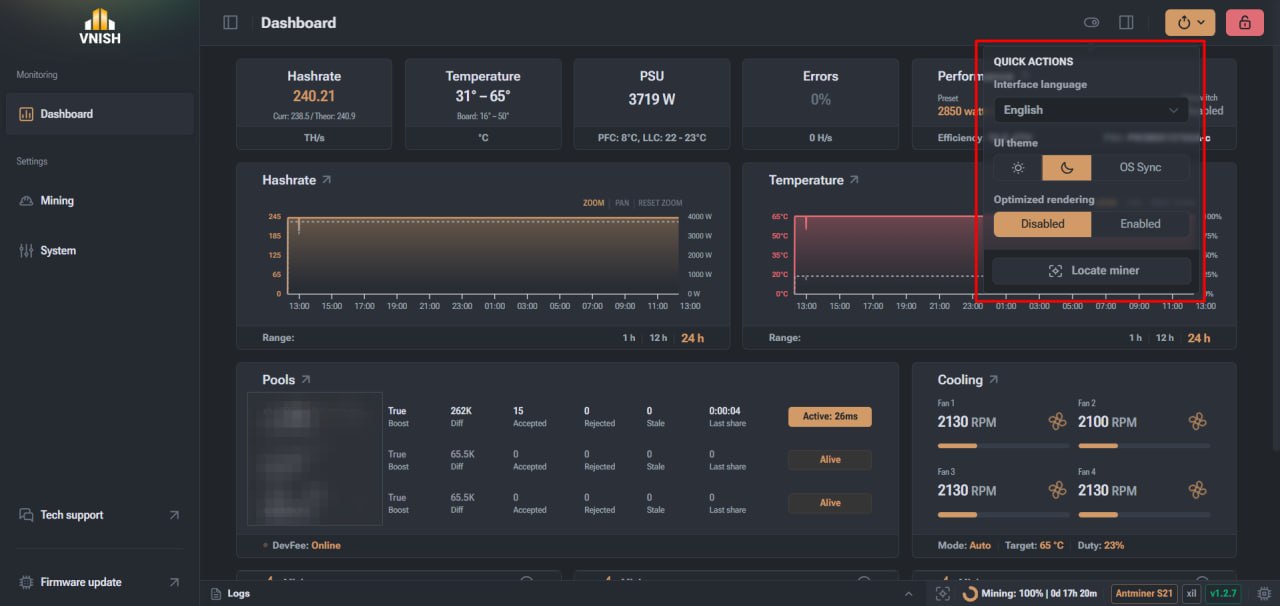
The interface structure allows you to quickly adapt the appearance of the control panel to your personal preferences or working conditions. The quick action panel offers the following interface settings:
- ► Selection of the control language
- ► Switching the theme
- ► Side menu colour scheme settings
- ► Optimising the web interface
Interface language
The interface language parameter is responsible for changing the display language of the controls in the miner's web panel. To do this, use the drop-down list, which contains the available interface language options. The language changes instantly after selecting the appropriate item. This allows users to quickly adapt the interface to a control language that is convenient for them.
Interface theme
The VNISH firmware offers several colour options for the interface. Users can select the mode that best suits their working conditions or personal preferences. Available design modes:
- ► Light theme
- ► Dark theme
- ► Synchronisation with the device's system theme
The third option uses the settings of the computer or mobile device operating system. In this case, the VNISH interface automatically switches between light and dark modes depending on the operating system settings.
Side menu theme
The VNISH firmware provides a separate option for controlling the colour scheme of the side menu. This feature is available when using the light interface theme. It allows you to change the display mode of the sidebar between light and dark options. This approach improves the readability of menu items and helps you focus on the main controls.
Interface optimisation
The interface optimisation feature is designed to control the visual effects of the web panel. Using a switch, the user can enable or disable additional animations and graphic effects. When interface optimisation is activated, complex visual elements are disabled. This reduces the load on the device's processor and speeds up the web interface. This mode can be especially useful when working with older devices or when connecting to the miner remotely via a slow network connection.
Miner identification tools
The quick action panel also has tools that help you quickly find a specific device in the mining infrastructure. This is especially important for large farms where a large number of ASIC miners are running simultaneously. Miner search The miner search function activates a light indicator on the device case. After pressing the corresponding button, the miner's LEDs begin to flash. This mechanism allows the operator to quickly identify the desired device among many other miners installed in racks or on shelves of the mining farm. This greatly simplifies the process of servicing equipment, diagnostics, or physical access to a specific miner.
FAQ
What is the quick action panel in the VNISH firmware?
The quick action panel in the VNISH firmware is a tool for quick access to the main settings of the miner's web interface. It allows you to quickly change the language, theme and other interface parameters.
How do I open quick settings in VNISH?
To open the quick action panel, click on the settings icon at the top of the miner's web interface.
Why do you need to optimise the interface?
The interface optimisation feature disables complex visual effects and animations. This reduces the load on the system and speeds up the web panel.
How do I find a specific miner in the rack?
To do this, you can use the miner search function. After activating this option, the device's LEDs will start flashing, which will help you quickly determine its physical location.