
How to restore stock firmware on a miner
How to restore stock firmware on a miner
When using alternative firmware such as Vnish, you may need to revert to the stock (factory) firmware from Bitmain. One convenient way to do this is with the HashCore Toolkit, without using an SD card.
If the device is not available on the network or won’t boot, use the alternative method — restore via SD card.
This guide will show you how to correctly restore the stock firmware to your miner via HashCore Toolkit.
Step-by-step guide
Open HashCore Toolkit
- ► Run the HashCore Toolkit utility on your computer.
- ► Make sure your miner is available on the local network.
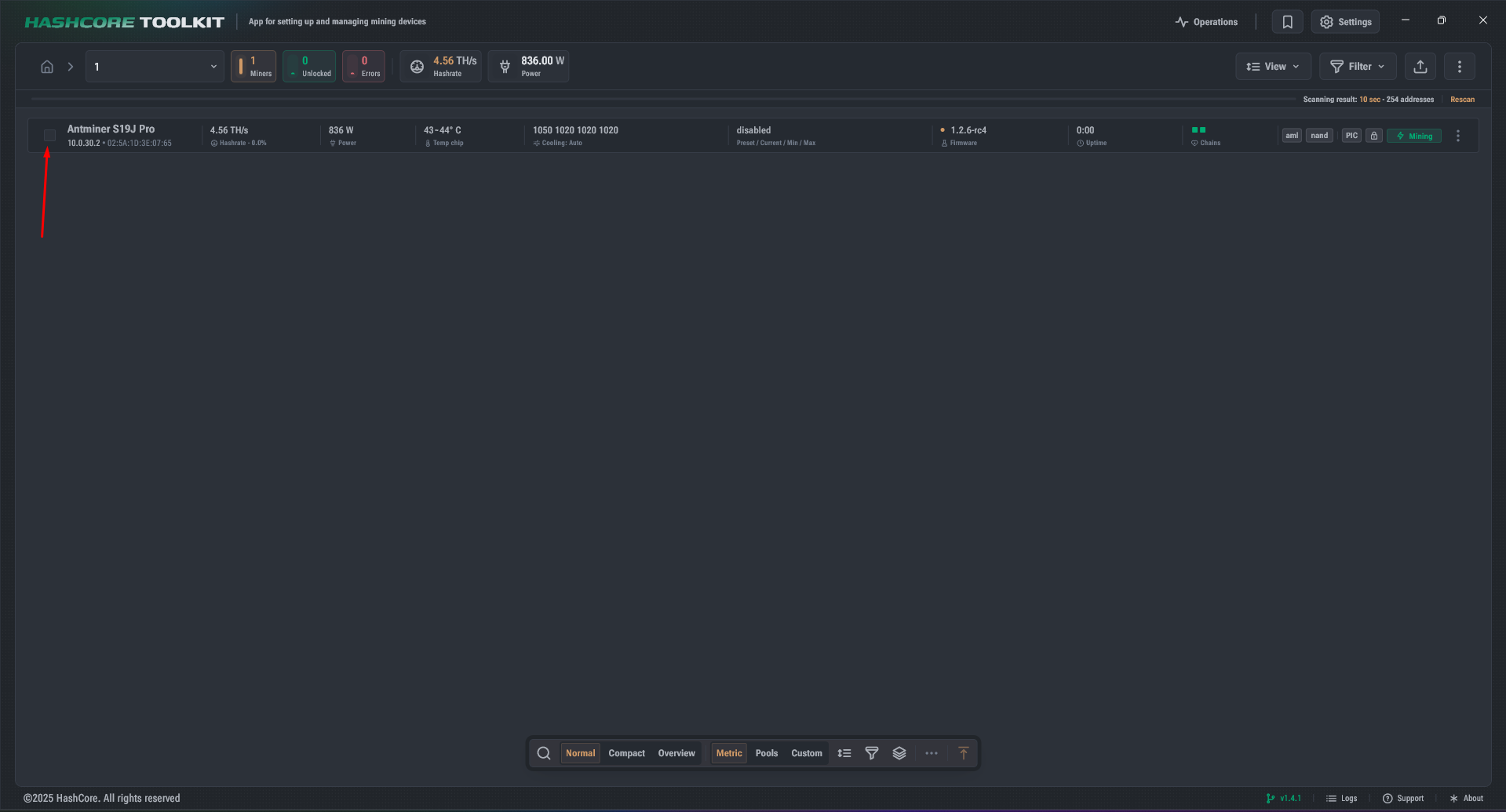
Find the miner
- ► In the main program window, find your miner in the list of devices.
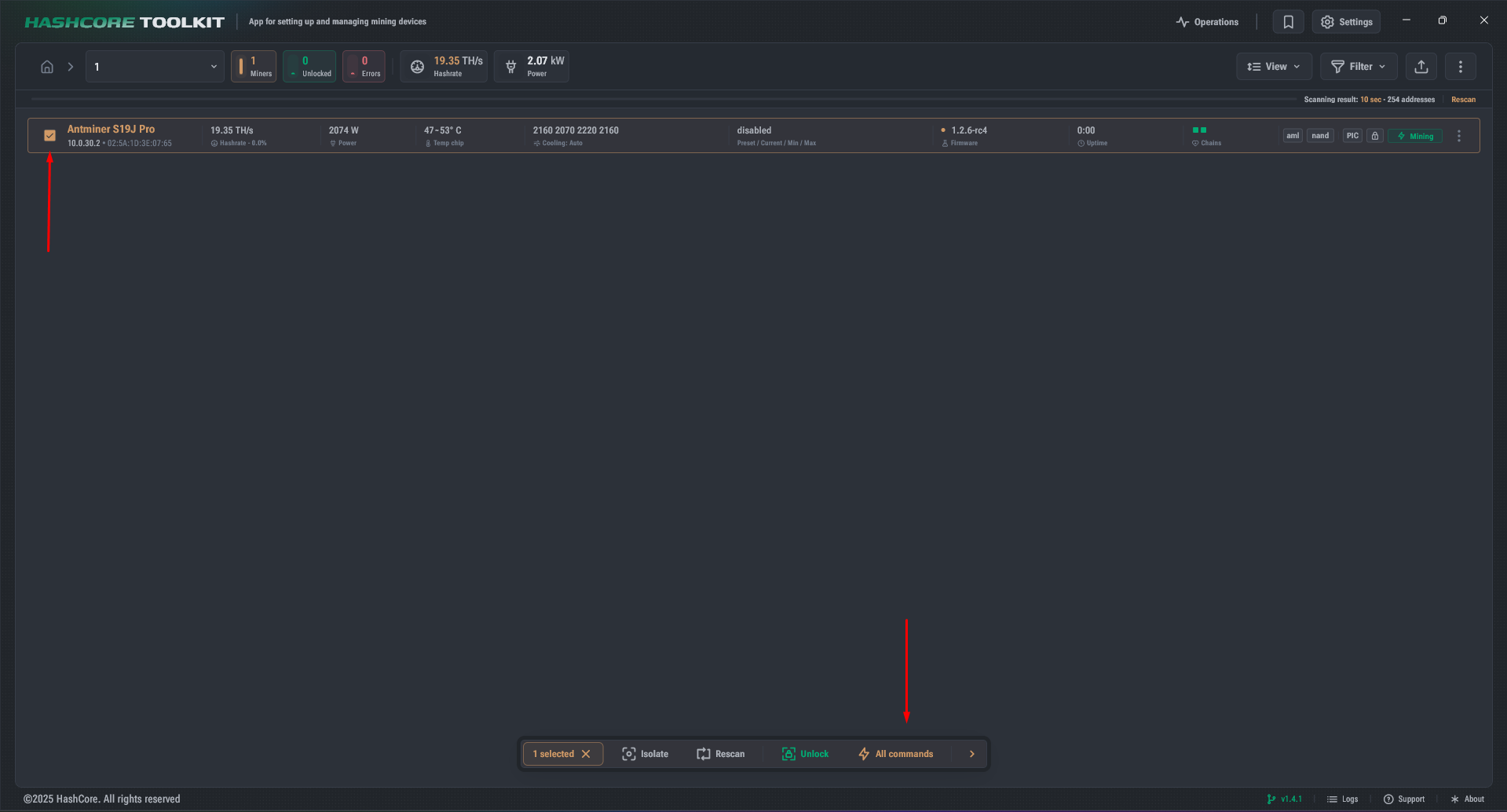
Select the miner
- ► Click the row with the desired miner to activate it.
- ► It will be highlighted as selected.
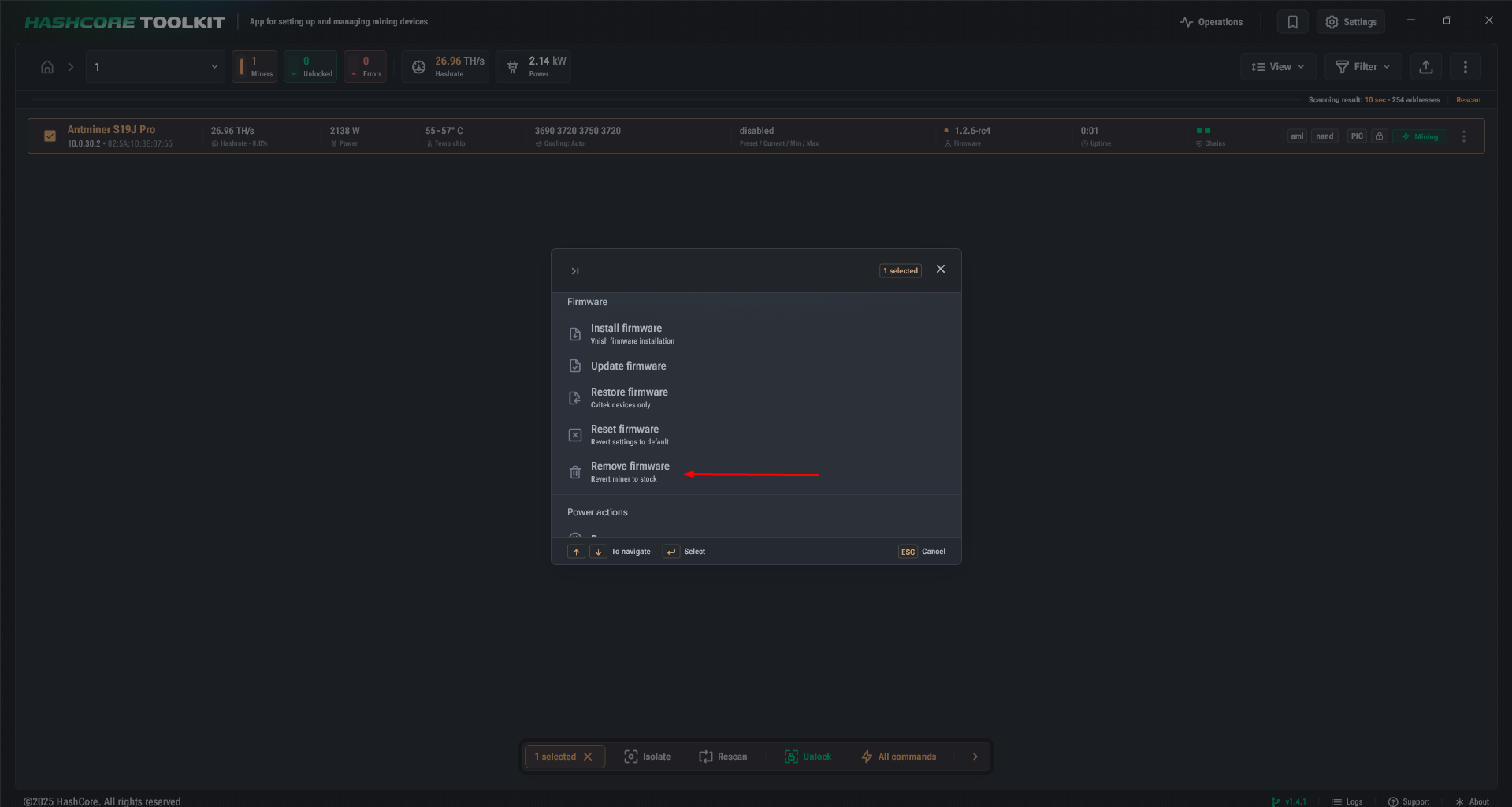
Open the command menu
- ► At the bottom of the interface, click the “Commands” button.
- ► From the list of available actions, select “Restore to stock firmware.”
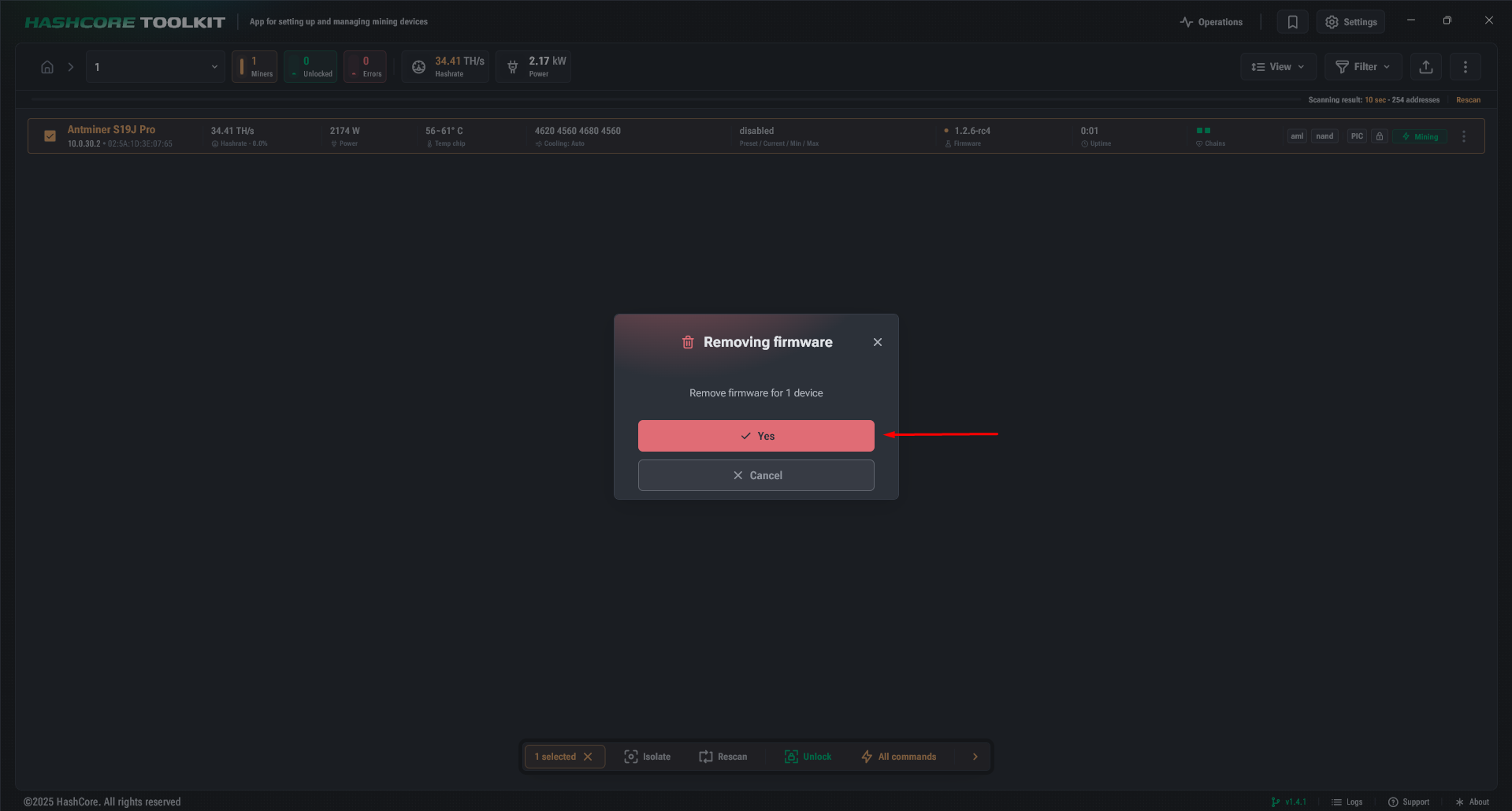
Confirm the action
- ► The program will ask for confirmation — click Yes or Confirm.
- ► Wait for the process to complete: the miner will restart and the custom firmware will be replaced with the stock one.
Verification
After completing the procedure:
Open the miner’s IP address in your browser.
Make sure the interface is the standard Bitmain one.
The “Restore to stock firmware” command in HashCore Toolkit is the fastest way to return the miner to factory condition. This option is especially useful for stable devices without critical failures.