
Filtering devices in Hashcore Toolkit: how to quickly find the miners you need
When working with a large number of miners, there is a need to quickly find specific devices based on certain parameters. This is precisely why Hashcore Toolkit includes a filtering system. Filtering allows you to display only those devices that meet the specified conditions. This significantly simplifies farm management, especially when dealing with dozens or hundreds of miners. Instead of manually scrolling through the entire list, you can set specific criteria and instantly get the result you need.
How to open and use the filter
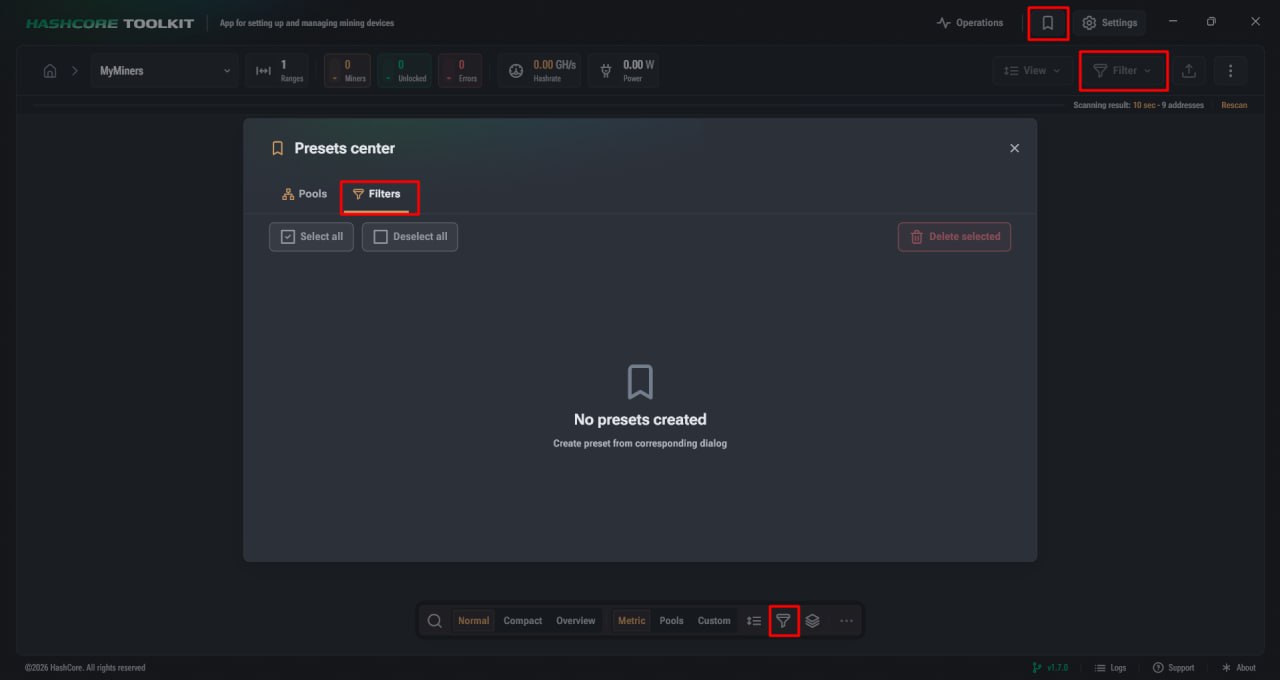
To start working with filters, you need to open the relevant menu. You can do this via the Filter button or via the filter icon in the quick actions panel. Once the menu is open, the system automatically selects the available filtering options based on the devices found. This means you only see relevant parameters that are actually applicable to your list. It is important to understand that if only one value is available for a particular parameter, such a filter is not displayed, as it serves no practical purpose.
Filter types in the system
Hashcore Toolkit implements three main types of filters, allowing you to flexibly configure device selection:
- ► Selecting a value from a list, such as a model or status;
- ► Entering numerical parameters, such as hash rate or power consumption;
- ► Toggle switches for quickly enabling or disabling specific conditions;
It is worth noting the option to invert conditions. This is done using the ‘Contains’ or ‘Does not contain’ toggle. This allows you not only to find matching devices but also to exclude specific values from the list.
Working with applied filters
Once a filter has been applied, it is displayed as a visual element in the list’s status bar. If you need to change the parameters, simply click on this element and make the adjustments. This is much quicker than creating a new filter. To completely remove a filter, use the button with the cross icon. After this, the list returns to its original view.
Filter templates in Hashcore Toolkit
If you regularly work with the same filter conditions, there is no point in configuring them manually every time. This is exactly what filter templates are for. They allow you to save ready-made sets of parameters and apply them in just a few clicks.
How to create a filter template
The creation process is as simple as possible and requires no additional settings:
- Configure the required filters and list modifiers.
- Click the button with the save icon.
- Enter a name for the template and add a description if needed.
- Confirm the creation of the template.
After that, the template becomes available for future use.
Where templates are used
Created templates can be applied via the filter menu or the quick actions panel. This allows you to switch instantly between different working scenarios. The template stores not only the filter itself but also other list parameters, making it a comprehensive tool for managing device display.
In particular, the template includes the following data:
- ► Sorting and grouping settings;
- ► Active filters;
- ► List of isolated addresses;
- ► Search string values;
Managing templates
Templates can be edited or deleted via the settings menu, which opens next to the template name. If you need to update a template, simply apply it, make changes to the filters and click the update button. This allows you to keep saved configurations up to date without creating new ones.
Miner filtering in Hashcore Toolkit as a tool for quick device management and control
The filtering system in Hashcore Toolkit unlocks a new level of control over mining infrastructure, allowing you to accurately and quickly find the required devices based on specified parameters. Thanks to a well-designed selection logic, the user can work not with a list, but with a pre-prepared selection of miners that meets specific criteria. Using filters significantly simplifies day-to-day tasks related to monitoring, diagnostics and equipment management. Instead of searching manually, you set clear criteria and see the result immediately, which is particularly important when working with a large number of devices. Regular use of filters and templates allows you to significantly improve the efficiency of mining management, reduce the time spent on routine operations, and obtain more accurate information about the status of equipment at any given moment. That is why filtering is a fully-fledged tool for professional work with miners.
FAQ
How do I open the filter in Hashcore Toolkit?
You can open the filtering menu via the Filter button or via the filter icon in the quick actions panel. Both options provide access to the same functionality.
Why are some filters not displayed?
Filters are generated based on the devices found. If only one value is available for a particular parameter, the system does not display it, as such a filter does not affect the result.
What types of filters are available?
The system uses three types of filtering: selecting a value from a list, entering numerical parameters, and toggles to enable or disable conditions.
How do I change an existing filter?
Click on its icon in the list’s status bar and edit the parameters. The changes will take effect immediately.
Where can I find the templates I’ve created?
They are available in the filtering menu, as well as in the quick actions panel for quick access.