
General Settings in Hashcore Toolkit
The General Settings section in Hashcore Toolkit is designed to manage the application’s basic settings. Here you can change the interface appearance, select a language, adjust the scale of elements, enable exit confirmation, change how device status is displayed, activate additional automatic actions, reset settings, or migrate application data. This section does not alter the ASIC miner firmware settings and does not directly affect the operation of hash boards, pools, or overclocking profiles. Its purpose is to configure the Hashcore Toolkit itself so that the user can work with the programme in a convenient format. All settings are located in the ‘Settings’ window on the ‘General’ tab. After changing the required items, you must click the ‘Save’ button. If you close the window or click ‘Cancel’, the new settings may not be saved. To start using the programme, download Hashcore Toolkit and install the latest version of the application.
How to open general settings
To access the main settings of Hashcore Toolkit, open the ‘Settings’ window and select the ‘General’ tab. This tab contains settings that control the interface appearance, application language, zoom level, data display in the device list, automation, reset, and settings migration.
- Open Hashcore Toolkit.
- Go to the ‘Settings’ window.
- Select the ‘General’ tab.
- Change the required settings.
- Click ‘Save’ to apply the changes.
The ‘Save’ button saves the selected settings. The ‘Cancel’ button closes the window without saving the changes. If some settings have been applied for preview purposes, this does not mean that they have already been saved as a permanent application configuration.
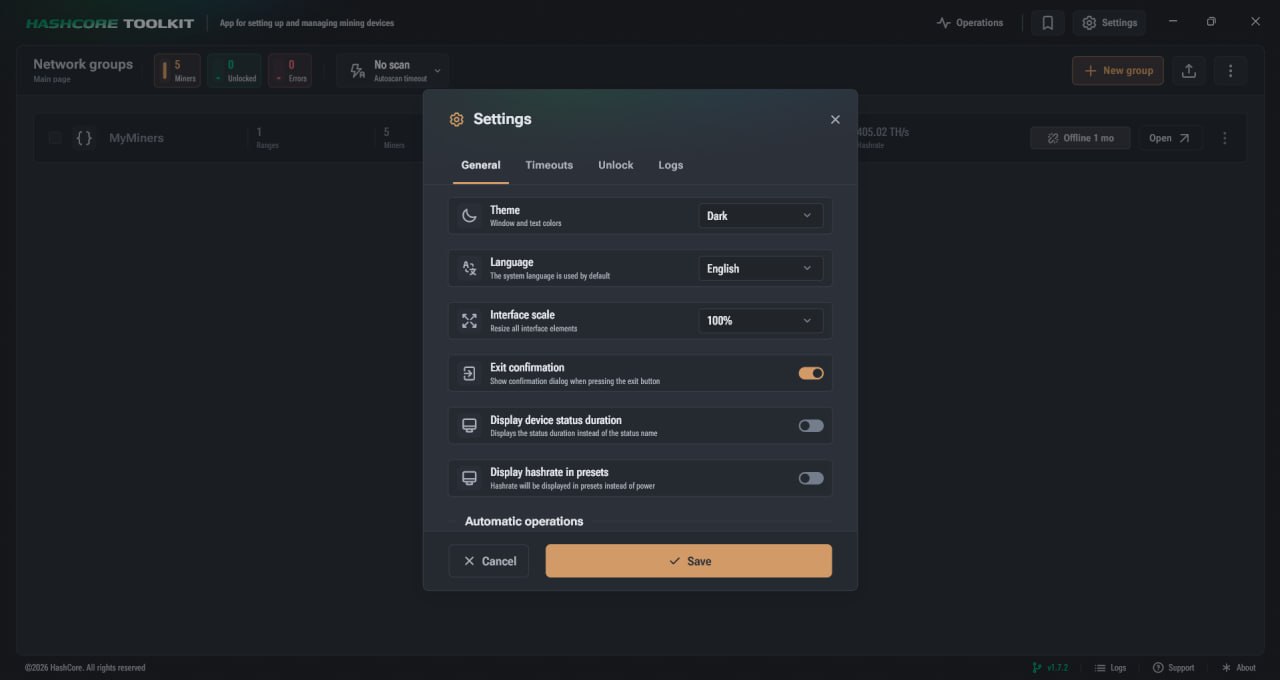
Interface theme
The ‘Theme’ setting determines the appearance of the Hashcore Toolkit interface. Using this setting, you can select the design of the application that will be used for main windows, panels, buttons, lists and text elements. The screenshot shows the dark theme selected. This mode changes the interface’s colour scheme and makes the visual part of the application more comfortable to use in a dark environment or during prolonged use. The theme change may be visible immediately, but you must click ‘Save’ to apply it permanently. The interface theme can be changed not only in the Hashcore Toolkit, but also in the miner’s web interface with VNISH firmware. If you need to find out how to quickly switch the theme and use other quick actions, go to the guide ‘Quick Actions in VNISH Firmware’.
Application language
The ‘Language’ option controls the interface language of Hashcore Toolkit. In this field, you select the language in which the names of tabs, buttons, settings, explanations and system elements of the programme will be displayed. If Ukrainian is selected, the app interface will display the main items in Ukrainian. This simplifies the experience for users who manage ASIC miners in Ukrainian and wish to see clear names for all settings without the need for additional translation.
Interface Scale
The ‘Interface Scale’ setting changes the size of all controls in the Hashcore Toolkit. It affects buttons, labels, tabs, list items and other parts of the application window. The screenshot shows a scale of 100 per cent. Changing the scale allows you to adapt the interface to the screen size and your personal preference. If you need to make the elements larger, you can select the appropriate scale value. If you need to see more information in a single window, you can leave the standard size or choose a more compact option, if available in the settings.
Exit Confirmation
The ‘Exit Confirmation’ setting enables an additional dialogue box when closing the application. If this option is enabled, Hashcore Toolkit displays a confirmation prompt before terminating the application. This is useful in cases where the user accidentally clicks the close button on the main window. Thanks to the exit confirmation, you can avoid accidentally closing the application whilst viewing devices, importing addresses, configuring groups, or performing other actions in the Toolkit.
Display status time
The ‘Show status time’ option changes how the device status is displayed in the list. If the option is enabled, the time the device has been in its current state will be shown instead of the status name. If the option is disabled, the status name is displayed in the device list. However, the status duration can be viewed by hovering the cursor over the status name, if such information is available. This setting helps you quickly assess how long a miner has been in a particular state without opening additional windows.
Displaying hashrate in presets
The ‘Show hashrate in overclocking profiles’ setting determines what data is displayed in the overclocking profiles. If enabled, the hashrate will be displayed in the overclocking profiles instead of the power. This setting only changes how information is displayed in the interface. It does not automatically change the profile, does not alter the overclocking values, and does not apply new settings to the ASIC miner. Its purpose is to allow the user to view profiles in a format that is more convenient for them.
Automation
The ‘Automation’ section contains settings that alter the behaviour of Hashcore Toolkit during programme launch, data import, and handling of network messages. These settings help reduce the number of manual actions and make working with a large number of devices more convenient. This section includes ‘Automatic Group Opening’, ‘Group Sequential Addresses’ and ‘IP Report Listening’. Each of these items corresponds to a separate application workflow scenario.
Automatic Group Opening
The ‘Automatic Group Opening’ setting allows Hashcore Toolkit to open the first group in the list immediately after the application launches. If this toggle is active, the user does not need to manually open the first group after each application start. This is useful when work regularly begins with the same group of devices. This setting only affects the interface behaviour when the programme starts. It does not trigger any additional operations with the miners or change their settings.
Group sequential addresses
The ‘Group sequential addresses’ setting is used during import. If a text file contains sequential IP addresses, Hashcore Toolkit can group them into ranges. This makes the list of addresses look more compact and working with imported devices more convenient. This setting is specifically required for processing sequential addresses during import. It helps to organise IP addresses when they appear consecutively and present them as ranges rather than a long, separate list.
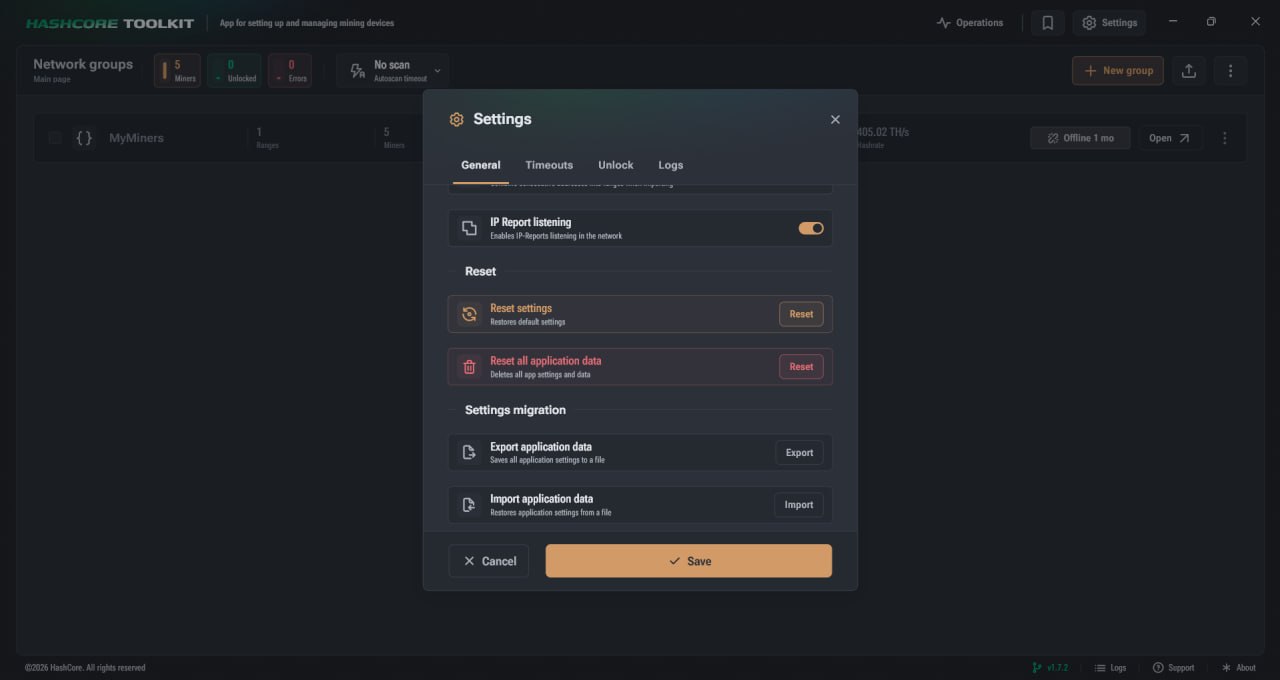
IP Report Listening
The ‘IP Report Listening’ option enables IP Report listening on the network. If this setting is enabled, Hashcore Toolkit can receive IP Report messages in the network environment. This setting is located in the automation block, as it is responsible for the programme’s handling of network messages. After changing the toggle’s status, you must click ‘Save’ for the setting to remain active after closing the settings window.
Reset settings
The ‘Reset settings’ option is available in the ‘Reset’ section. It restores the default settings. This option can be used if you need to revert to the application’s standard configuration after changing the theme, language, zoom level or other interface settings. Resetting the settings should not be confused with completely clearing all app data. This option is specifically designed to restore the default settings that have been altered by the user during use.
Reset all app data
The ‘Clear all app data’ option deletes all app settings and data. This is a more thorough action than a standard reset of settings. If you tap this button, the app clears the stored data associated with the app’s operation. Before using this option, you need to understand the difference between the two actions. ‘Reset settings’ restores the default settings, whilst ‘Reset all app data’ deletes all app settings and data.
Settings migration
The ‘Settings Migration’ section is designed to transfer application data via a file. It contains two main tools: Export Application Data and Import Application Data. ‘Export app data’ saves all app data to a file. This allows you to create a file containing the current Hashcore Toolkit configuration. ‘Import application data’ restores the application configuration from a file. This option is used when you need to load previously saved data back into the application. Migrating settings is useful when you need to transfer the Hashcore Toolkit configuration or restore it from a prepared file. After performing an import or export, you should check that the required settings are displayed correctly.
How Hashcore Toolkit’s general settings help you manage ASIC miners conveniently
The general settings of the Hashcore Toolkit form the basic configuration of the application for daily work with ASIC miners. It is in this section that the user can customise the programme interface, select a preferred language, adjust the scale of elements, enable exit confirmation, configure the display of device status times, and change how the hashrate is displayed in overclocking profiles. Automation settings are particularly useful when working with a large number of miners. Automatic group opening helps you navigate to the required device list more quickly after launching Hashcore Toolkit. Grouping consecutive IP addresses simplifies the import and management of miner addresses. IP Report monitoring allows the application to receive relevant network notifications, making device management more convenient within the scope of the programme’s available functionality. The reset and migration functions play a special role. Resetting settings allows you to restore the standard Hashcore Toolkit configuration if you wish to revert to the default settings. Resetting all application data clears the saved settings and application data. Migrating settings allows you to export Hashcore Toolkit data to a file or import a configuration from a previously saved file. After making any changes to the general settings, you must click the ‘Save’ button. Without saving, some settings may remain only in preview mode and will not be applied after closing the settings window. A correctly configured ‘General’ section helps make working with Hashcore Toolkit clearer, more stable and more convenient when managing ASIC miners.
FAQ
What are the Hashcore Toolkit general settings?
The Hashcore Toolkit general settings are a section for changing the language, theme, interface scale, automation, reset and migration of application data.
Where can I find the Hashcore Toolkit general settings?
Open the ‘Settings’ window and go to the ‘General’ tab. This section contains the main settings for the programme.
What is the interface theme in Hashcore Toolkit for?
The interface theme changes the appearance of the programme. Users can choose a convenient design for their daily work with ASIC miners.
What does IP Report listening do?
Enabling IP Report listening allows Hashcore Toolkit to receive IP Report messages on the network, provided this option is enabled in the general settings.
Why is Hashcore Toolkit settings migration needed?
Migrating settings is required to export application data to a file or import a previously saved Hashcore Toolkit configuration.